AI Saree Catalogue Generator: How Textile Magic AI Works
A buyer sends you a message: “Please share your new saree catalogue.”
Your stock is ready. Your designs look lovely. But you only have photos of folded sarees on a table. The buyer wants to see how each saree looks when someone wears it.
This is where Textile Magic AI can help.
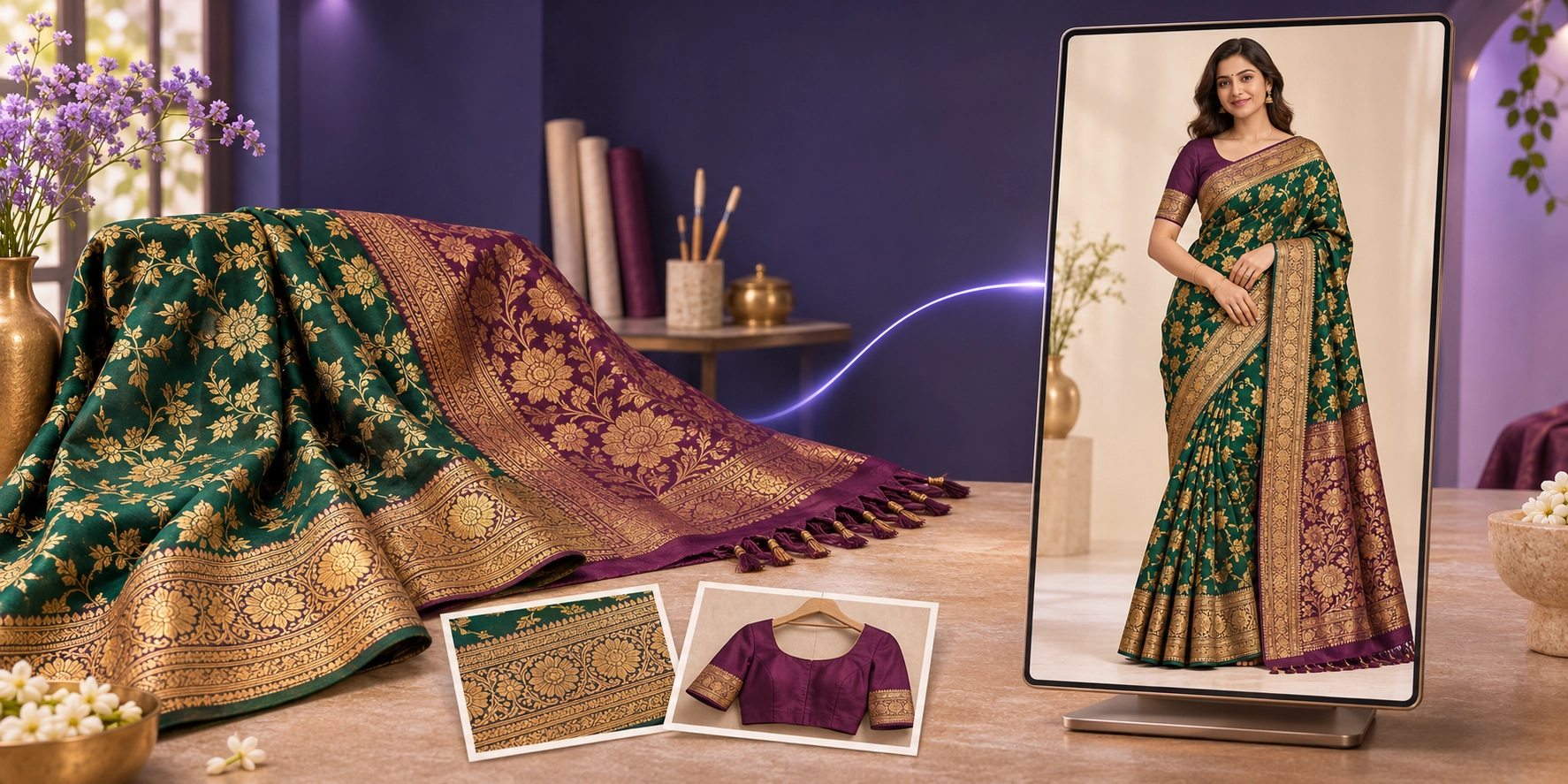
The AI Saree Catalogue Generator helps you turn saree photos into model catalogue images. You upload your saree and model photos, choose the views you need, and create new pictures for your collection.
This guide explains each step, why clear references matter for detailed Indian sarees, and our promise to return 100% of the credits used for a generation mistake.
Why Indian sarees need extra care in photos
A saree has many small details. Its main colour is only one part of the design.
A buyer may choose it because of its gold border, small flower pattern, rich pallu, or blouse design. If these details change in a catalogue photo, the picture may show a different product.
Think about a red saree with small gold flowers and a wide green border. A good catalogue image should help buyers see those features clearly.
For a seller in Surat, a boutique in Jaipur, or an online store anywhere in India, the goal is simple: show the saree you actually sell.
A clear model photo helps buyers understand the full look. Real close-up photos can help them check the fabric and its fine work.
What does the tool do?
Textile Magic AI creates pictures showing a model wearing your saree.
You provide the product photos. The tool uses them as a guide when making the new image. You can choose one image or create up to six poses.
You can also add a background and extra photos of the blouse and border.
These options help you explain the product through pictures. You do not have to describe every small design detail in a long prompt.
The tool is made for creating catalogue visuals. Your saree stays the main subject of the image.
How to create saree catalogue images
Step 1: Take a clear saree photo
Start with the actual saree you want to sell.
Open it enough to show its main pattern, border, and pallu. Place it in even light. Avoid strong shadows or filters that change the colour.
Keep the phone steady. Check that the photo is sharp before uploading it.
The tool’s guide suggests placing the saree vertically, with the pallu at the bottom, where possible. This makes its layout easier to show.
If the design is hidden inside folds, take another photo that shows it clearly.
Step 2: Upload the saree and model photos
Open the Saree Model Photo Studio.
Upload your saree photo and a clear model reference. Both are needed for this workflow.
The saree photo shows the product. The model photo guides the person shown wearing it.
For a collection, using the same model reference can help you aim for a similar look across the set. Check the finished images together before using them.
Step 3: Add the important design details
For a saree with fine work, one wide photo may leave small details hard to see.
Use the extra upload options when needed:
-
Add a border close-up to show its pattern.
-
Add a blouse front photo to show its neckline and sleeves.
-
Add a blouse back photo to show its back design.
-
Add a background reference if you want a certain setting.
Choose clear photos of the same product. Name files clearly before uploading. Mixed photos from different sarees can give unclear instructions.
Step 4: Choose poses that help buyers
Pick views based on what the buyer needs to see.
A front view shows the full outfit. A pallu pose shows more of the pallu design. A side view can help show the blouse and drape.
A close-up is useful when a small detail needs attention.
You can create up to six views. Start with one pose, check it, and then make the rest. This gives you a chance to improve your references early.
Step 5: Choose the image shape
The tool offers 4:5 and 9:16 image shapes.
A 4:5 image can fit a product post or a catalogue layout. A 9:16 image gives you a taller frame for a full-length look.
Keep the saree easy to see. Leave enough space around the model so the pallu or border is not cut off.
Choose a simple background when the saree has a busy design. This helps the product stand out.
Step 6: Generate, check, and download
Create the image, then compare it with your original saree.
Look at the colour, border, pallu, blouse, and small patterns. Check the hands and folds too.
Ask one simple question: “Does this picture show the saree my buyer will receive?”
When the image is suitable, download it for your catalogue or store.
AI images still need this final check, especially when the saree has very fine work.
How the references help with design accuracy
Accuracy means keeping the product details close to the real saree.
Textile Magic AI gives you separate places to show details that matter. This is useful when a small part of the product is difficult to explain in words.
For example, “gold border” can mean many different designs. A close-up shows the actual shapes and lines you want the tool to follow.
The same idea applies to the blouse. A front and back reference gives clearer guidance about the style than a short colour description alone.
For the pallu, a clear view helps show where its special design begins and how it differs from the main fabric.
This is why the workflow can be helpful for detailed Indian sarees. You can give the tool more specific visual information.
These controls support accuracy, but they do not prove that every result will be perfect. The finished image should always be checked against the product.
Keep your instructions simple too. You could write: “Use the uploaded saree and model. Keep the blue fabric, silver border, and pink blouse close to the reference. Show a front standing pose with the pallu clearly visible. Use a plain background.” A short, clear request helps keep the task focused. Avoid adding many new styling ideas when your main goal is to show the existing product.
A simple example for a Surat saree seller
Imagine you have a blue saree with a silver border and a pink blouse.
You want catalogue pictures to share with buyers on WhatsApp.
First, photograph the full saree. Then take a clear border close-up and photos of the blouse. Add your chosen model reference.
Create one front pose and compare it with the product.
Is the blue shade close? Is the border in the right place? Does the blouse match? Can the buyer see the main design?
Once you are happy with the result, create more useful views.
Name each image with the saree’s product code so you can find the right design when a buyer asks about it.
Our 100% credit refund promise
We know that a generation mistake can slow down your work.
If an image has a generation mistake, we return 100% of the credits used to make that image.
The credits for that generation are returned to your Textile Magic AI account.
For example, if an incorrect image used five credits, those five credits are returned under this promise.
To help our team understand the problem, share your original reference and the incorrect output through our support page.
Point out what went wrong. For example, explain which product detail changed or which part of the image has a generation error.
Clear references guide the image creation. The credit refund promise gives you support when that process produces a mistake.
How much does it cost to start?
Textile Magic AI uses credit packs.
The pricing page currently lists a Starter pack at ₹149 for 75 credits. Image generation uses five credits per image.
That gives you enough credits for 15 image generations.
You can begin with one saree and one pose. Check the result before using more credits on the rest of the collection.
Visit the pricing page for current packs and prices before buying.
Where can you use the catalogue photos?
You can prepare images for your online store, Instagram posts, buyer messages, and product presentations.
If you sell through Shopify, its product media guide explains how images and other media work on product pages.
Give buyers a useful mix of views. Show the full saree, then add closer views of important details.
For Google Shopping, check Google’s product image guidelines. They explain why the picture should show the exact product and its correct colour and pattern.
Keep your original product photos too. They are useful for checking generated images and answering buyer questions.
Common questions
Can I use the tool for sarees with fine designs?
Yes, you can provide extra references for the border and blouse. These give the tool more detail to work from. Review fine patterns in the finished image before publishing it.
Do I need to book a new model shoot?
The workflow uses a model reference photo along with your saree photos. You need to provide that reference, but you do not need to arrange a new shoot for each generated pose.
Can I make more than one pose?
Yes. You can choose between one and six poses. Pick views that show different useful parts of the saree.
What happens if there is a generation mistake?
We return 100% of the credits used to make the image with the mistake. Send support the output and reference photos to explain the problem.
Create your first saree catalogue image
Start with one saree whose design is easy to see.
Take clear photos, add the details that matter, and choose one useful pose. Review the result before building a full set.
Whether you run a wholesale business in Surat or a small online boutique, the goal is the same: help buyers understand your product.
Open the Textile Magic AI Saree Catalogue Generator and create the first model image for your collection.