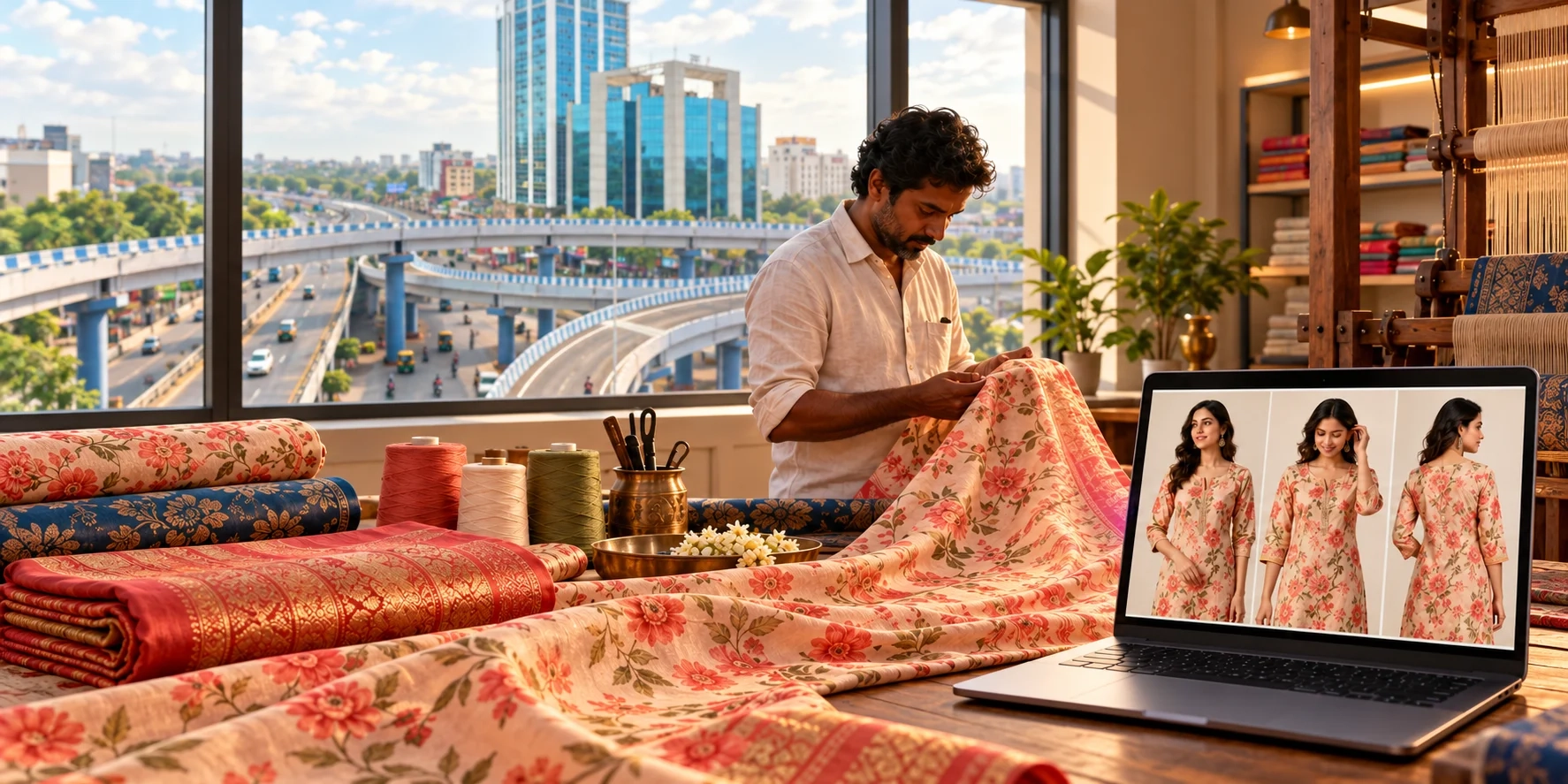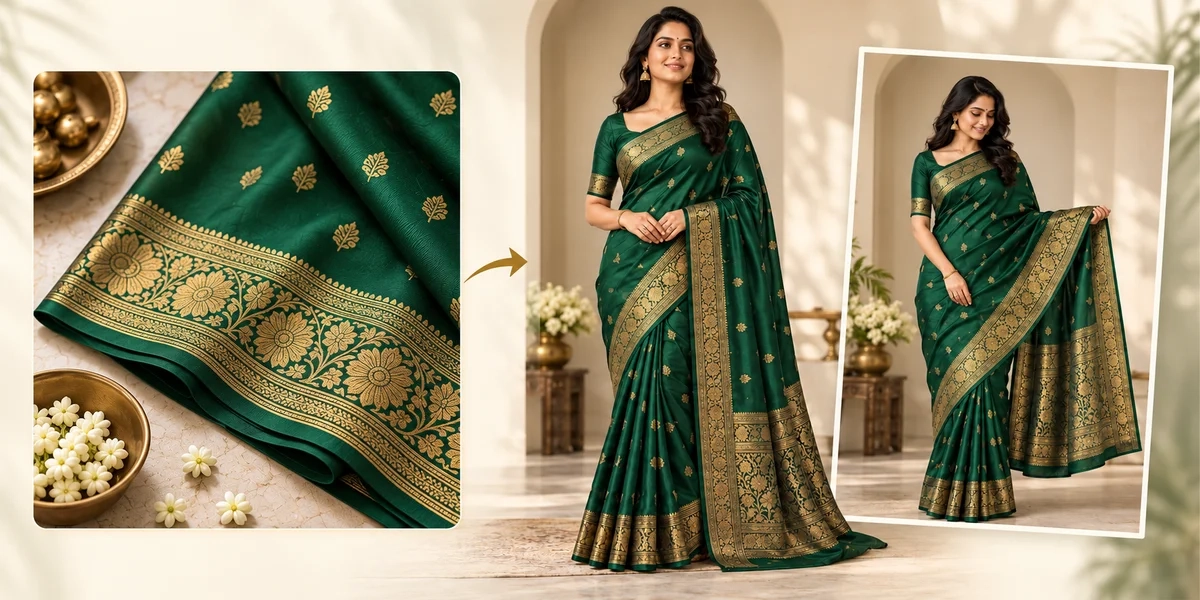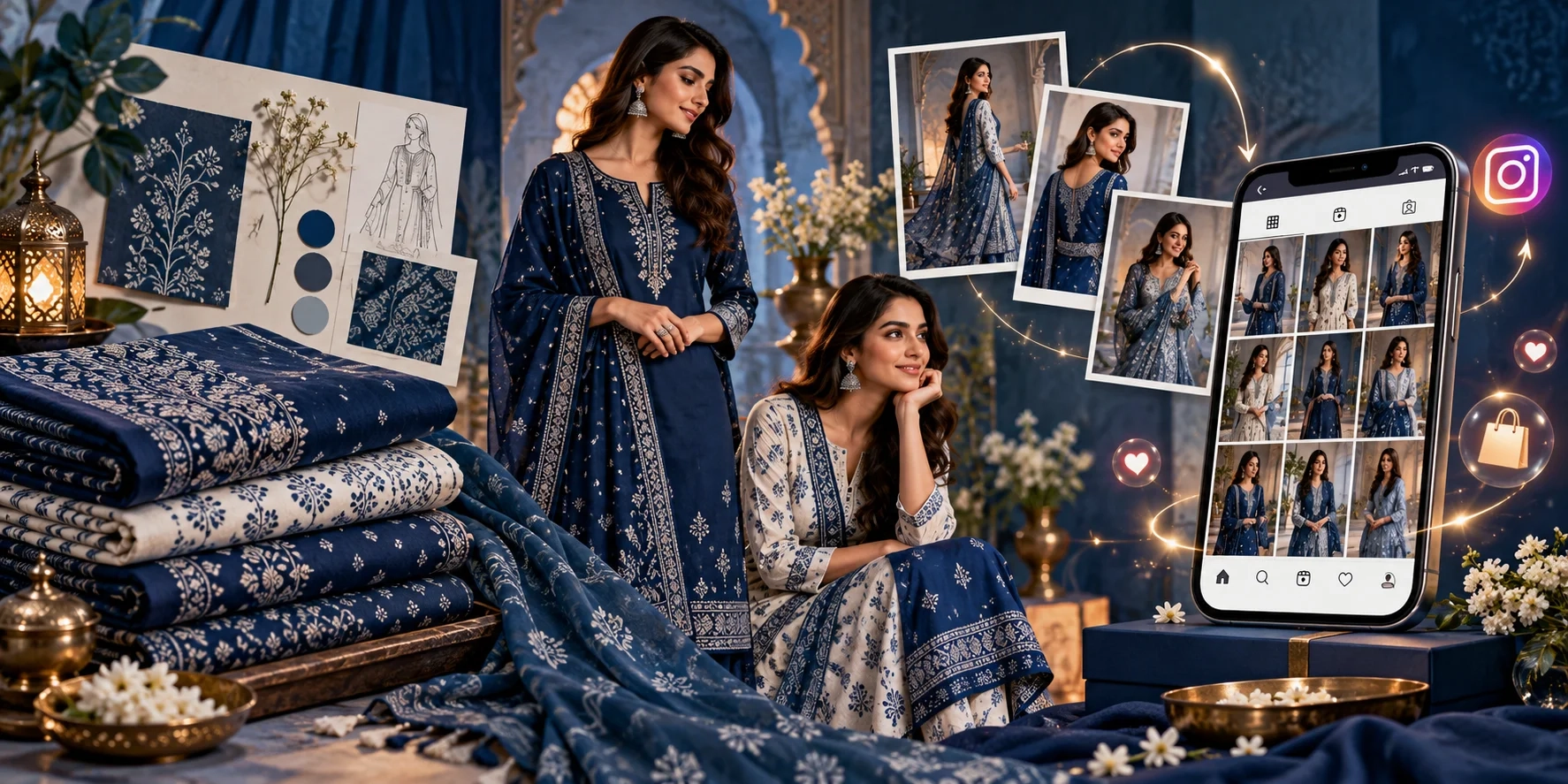
A folded suit set shows the fabric. An on-model photo helps a customer picture how that fabric could look after stitching.
For an unstitched suit seller, both views matter.
Customers need to understand the possible outfit and know exactly what will arrive in their parcel. Is it a three-piece set? How much fabric is included? Is the dupatta shown actually supplied?
To sell unstitched suits on Instagram, combine checked on-model styling previews with real fabric photos, clear product details and an easy ordering process.
This guide explains how to do that with Textile Magic AI, from photographing your material to answering your first order enquiry.
Step 1: Write Down Exactly What You Are Selling
Before creating images, make a product record for each design.
Include:
-
A unique product code.
-
Top, bottom and dupatta fabric types.
-
The length and width of each supplied piece.
-
Print, embroidery and border details.
-
Available colours and stock.
-
Price, shipping charges and dispatch time.
-
Whether stitching, lining or accessories are included.
Use details from your stock and supplier records. Avoid describing fabric as pure cotton, silk or another material without checking.
Most importantly, state that the product is unstitched.
A customer seeing a model in a finished outfit may otherwise expect to receive that exact stitched garment. Clear wording helps set the right expectation before payment.
Step 2: Photograph the Actual Suit Set
Start with clear reference photos taken in soft, even light.
Lay the top fabric, bottom fabric and dupatta separately on a clean surface. Take one photo showing the whole set, followed by close-ups of the print, neckline work, border and texture.
Keep colours natural. Avoid beauty filters, strong colour effects and lighting that makes the material look lighter or richer than it is.
For a directional print, show which way the design runs. If embroidery appears only on the front panel, capture that placement clearly.
Photograph each colour variant separately so every preview matches the fabric the customer selects.
Keep these original photos for your Instagram carousel and buyer messages.
Step 3: Create an On-Model Styling Preview
Open Textile Magic AI’s Fabric to Garment tool.
The tool accepts a fabric photo, an optional style reference and your written design instructions. You can describe the outfit instead of choosing only from fixed garment styles.
For an unstitched suit, start with a clear reference showing the supplied materials. Explain which material belongs to the top, bottom and dupatta.
Example Instructions
Create an adult female model wearing a simple straight-cut salwar suit inspired by this unstitched set. Use the printed top fabric for the kameez and the plain bottom fabric for the trousers. Use the supplied dupatta reference. Keep the original colours, print scale and embroidery placement. Add no extra lace, buttons or decorative work. Use a plain background and soft daylight.
Adjust this example to match your actual product.
Choose a realistic silhouette for the supplied fabric quantity. Review the result carefully; instructions do not guarantee perfect detail preservation.
Describe the image as an AI styling preview. Final stitching, fit and pattern placement can vary.
Step 4: Build a Consistent Set of Model Photos
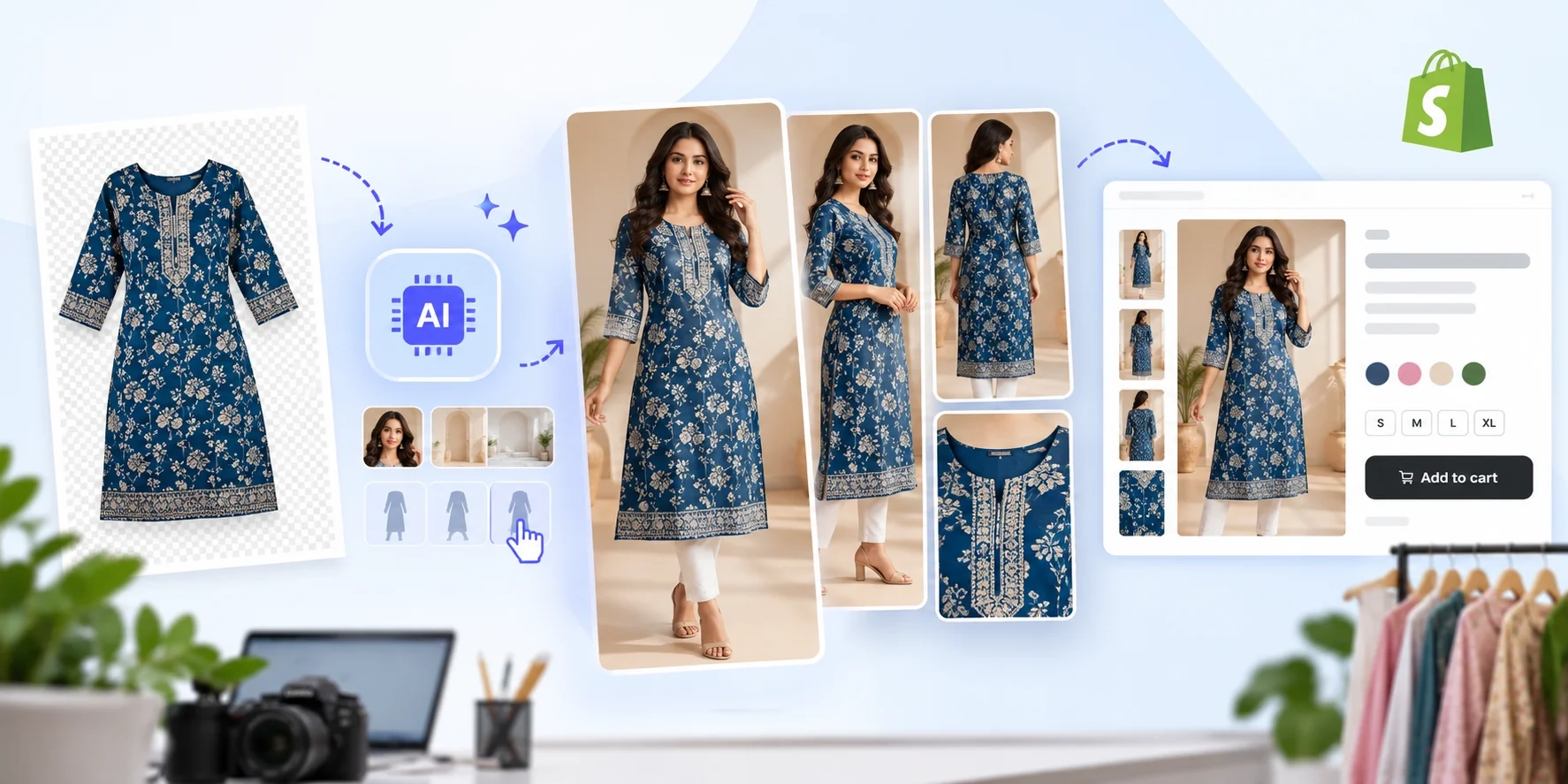
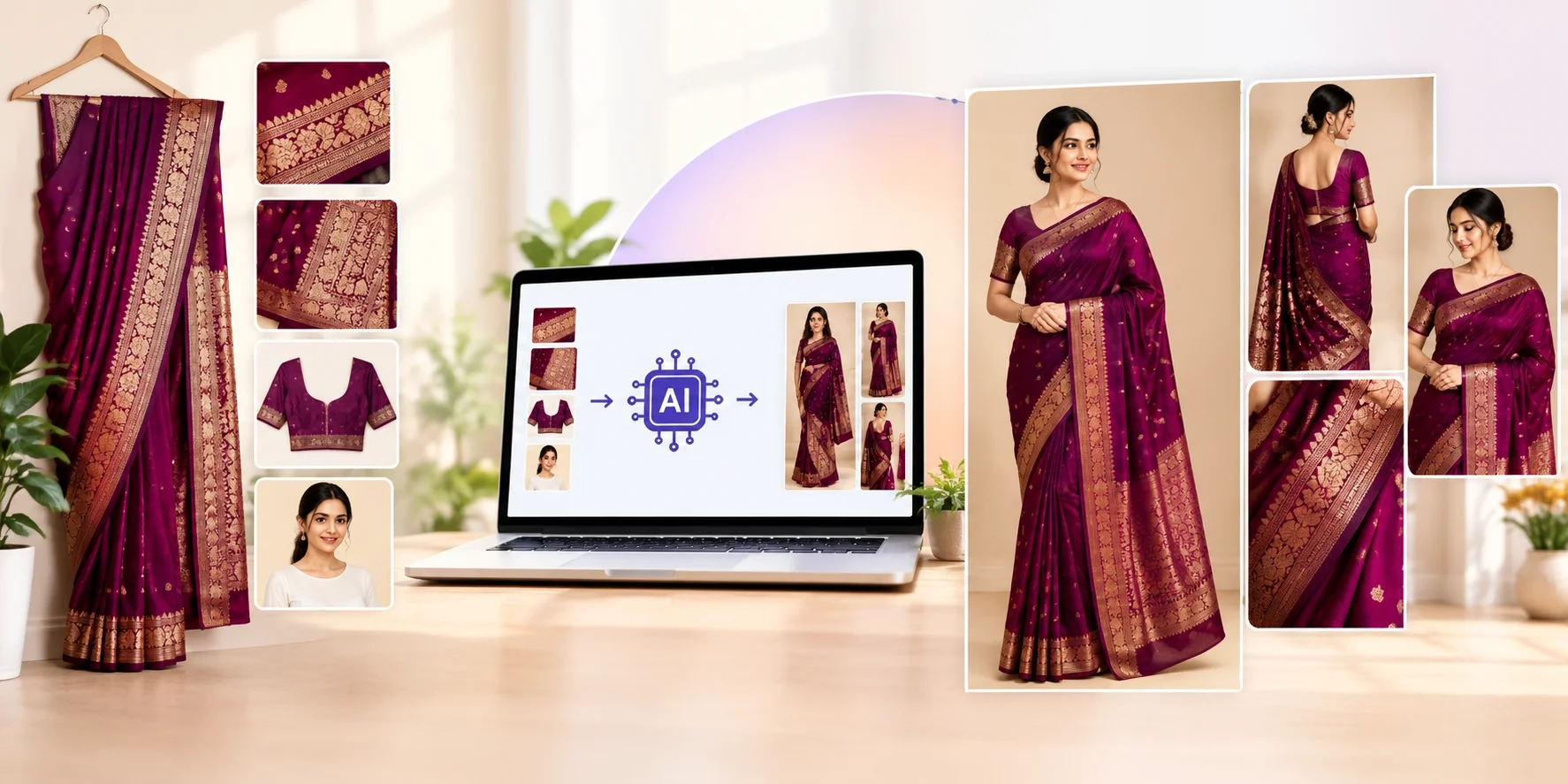
Once you approve the first garment visual, use the AI Catalogue Generator to create more views.
The current tool accepts a model image and up to five garment references, with a choice of one to six poses.
Keep the model, background and lighting direction consistent across the set.
Start with three useful views:
-
A full-length front view showing the outfit.
-
An angled view showing the silhouette.
-
A pose that keeps the dupatta visible.
Add more views only when they help explain the product. Avoid poses that hide the print behind crossed arms, bags or heavy jewellery.
Check each new image against the original fabric. A mistake in the first generated image can carry into later poses.
Step 5: Check What the Customer Will Notice
Compare every image with the actual set before posting.
Check whether the flower size, colour, border width and embroidery match. Look for missing dupatta patterns, changed sleeves, invented buttons or extra lace.
Also check whether the image shows more fabric, fullness or decorative work than the supplied material could provide.
Use real close-up photos to show weave and texture. A generated detail image should not replace evidence of the actual fabric.
If an image looks attractive but changes the product, correct it or leave it out. Your catalogue needs to support an accurate purchase decision.
Step 6: Turn the Images into a Carousel and Reel
One product can give you two useful pieces of Instagram content.
Create a Product Carousel
Use this suggested order:
| Slide | What to show |
|---|---|
| 1 | Your strongest approved on-model styling preview |
| 2 | The actual unstitched set, with all supplied pieces visible |
| 3 | A real close-up of the print or embroidery |
| 4 | The actual dupatta and border |
| 5 | A second approved styling view |
Keep each product photo separate and large enough to inspect on a phone.
Make “unstitched suit set” and the AI-preview explanation easy to find at the start of the caption. Show the same clarification on the linked product page.
Create a Simple Reel
Film yourself opening the real set, showing its details, then cut to the approved model preview.
A short sequence could show the folded set, fabric being opened, the dupatta close-up and the finished-look preview.
Use vertical framing and gentle cuts. Preview the Reel on your phone so important garment details remain visible.
If you animate the model image, check that movement has not changed the print or invented fabric behaviour.
Step 7: Write a Caption That Answers Buying Questions
A useful caption explains the product and gives the customer one clear next step.
Start with the garment type and product code. Add the fabric details, price, contents and delivery information.
Here is a template. Replace every bracket with confirmed details:
Floral unstitched suit set | Code US-101
See one way this fabric could look after stitching.
Includes: [list supplied pieces]
Top: [fabric, length and width]
Bottom: [fabric, length and width]
Dupatta: [fabric and dimensions]Price: ₹[amount]
Shipping: [charge or terms]
Dispatch: [time]Model images are AI styling previews. You will receive the unstitched materials shown in the fabric photos. Stitching and accessories: [state what is included].
DM “US-101” with your delivery PIN code for availability and the total.
Use natural search phrases such as “unstitched salwar suit” or “printed dress material” when they accurately describe the item.
Add relevant hashtags, such as #UnstitchedSuits and #DressMaterial. Avoid unrelated tags and promises that a hashtag will produce orders.
Step 8: Make Your Profile and Order Process Clear
Your profile should explain what you sell, where you operate and how customers can order.
For example, a Surat-based seller could use:
Unstitched suits and dress material | Surat
Fabric details with every design
Order through our website or DM
Only mention delivery areas you actually serve.
Keep your ordering instructions, shipping information and exchange terms easy to find. Use a direct link to your collection or product page when you have a website.
Reply to Enquiries with Complete Details
When someone messages a product code, confirm the exact set, current availability and delivery location.
Send the real fabric photos, total payable amount, dispatch estimate and applicable exchange terms before collecting payment.
Confirm payment through your payment provider, record the order and send dispatch information when available.
If you want Instagram Shopping or product tags, check eligibility first. Shopify’s official Instagram Shopping guide explains that these features depend on supported regions, product requirements and account approval.
You can build the content and enquiry process around your website or messages while checking which shopping features your account supports.
Step 9: Test a Small Collection and Track Orders
Start with five designs that represent your range. Include a simple print, a detailed design and different colours.
For each product, record:
-
Image creation and review costs.
-
Enquiries mentioning its product code.
-
Website visits you can attribute to the post.
-
Confirmed orders.
-
Questions customers repeatedly ask.
Compare results over similar time periods. Track stock availability and price changes too, since they can affect enquiries and orders.
A post with many likes may still leave buyers confused about what is included. A smaller audience asking clear buying questions can be useful feedback.
Improve the part causing confusion. If customers keep asking whether the suit is stitched, move that information higher in the caption.
Frequently Asked Questions
Can I sell unstitched suits using AI model photos?
You can use them as styling previews alongside real product photos. Clearly explain that the customer is buying unstitched material and describe everything included.
Do I need to stitch every suit before making a catalogue?
You can create a visual preview from fabric references without stitching every design. Use a physical sample when you need to demonstrate actual construction, fit or garment movement.
How many pictures should I post for each suit?
Start with a useful five-image set: an on-model preview, the full fabric set, a print close-up, the dupatta and another styling view. Adjust it to the questions your customers ask.
Does unstitched mean the suit fits everyone?
No. The possible finished size depends on the material’s length and width, the pattern and the tailor’s cutting plan. Share measurements so the customer can check suitability.
Will better model photos guarantee more sales?
No. Photos are one part of the buying decision. Price, product quality, delivery terms, trust and how you handle enquiries also matter.
Create Your First Unstitched Suit Catalogue
Choose one set from your current stock and photograph every included piece.
Use Textile Magic AI’s Fabric to Garment tool to create a styling preview, check it carefully and prepare your first product carousel.
View the current credit plans before starting. If you need help choosing the right workflow, contact the team with your product references.
Give your customer a clear picture of the possible outfit and the exact material they will receive.
Create your first on-model preview with your own fabric today.