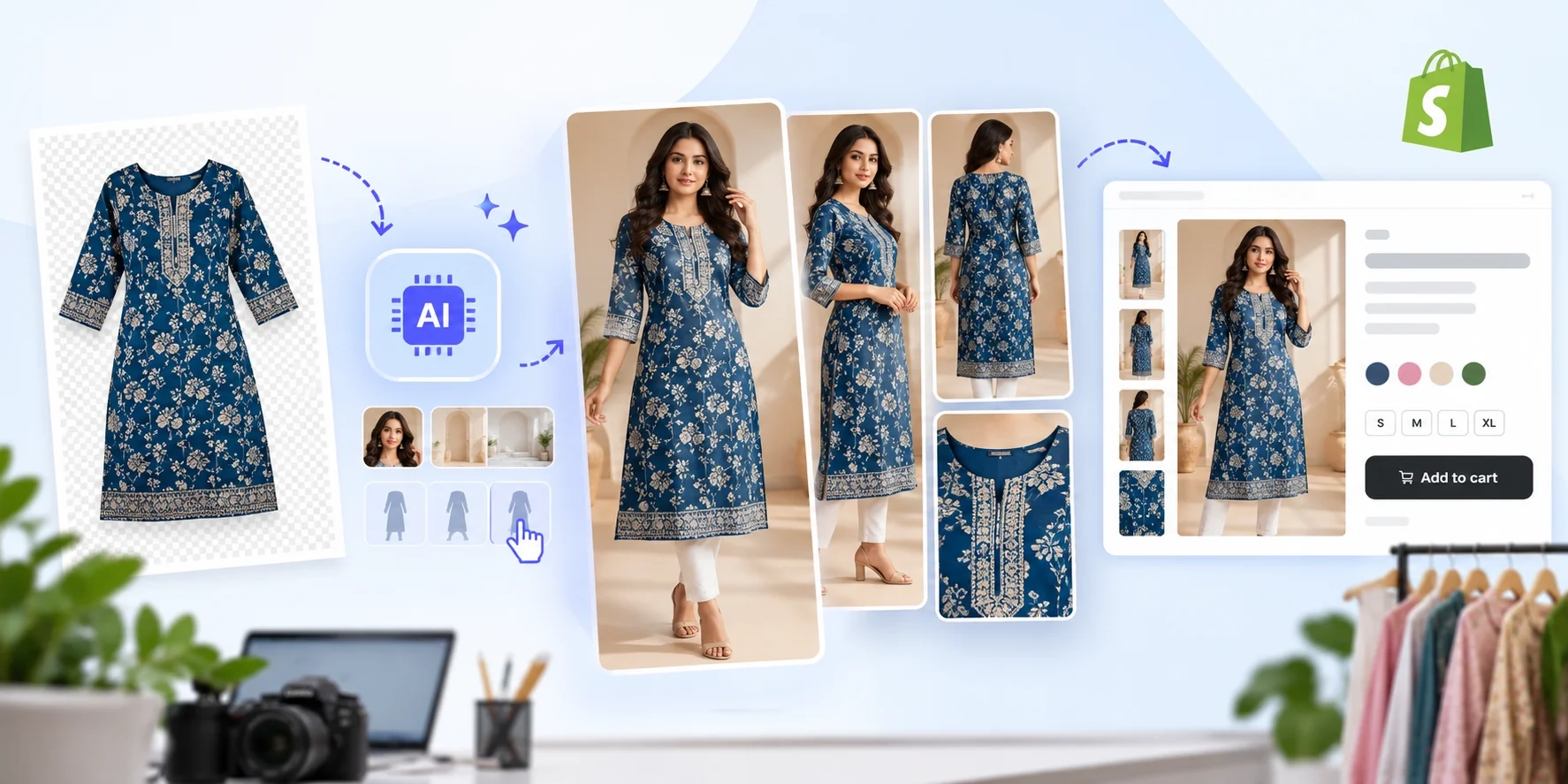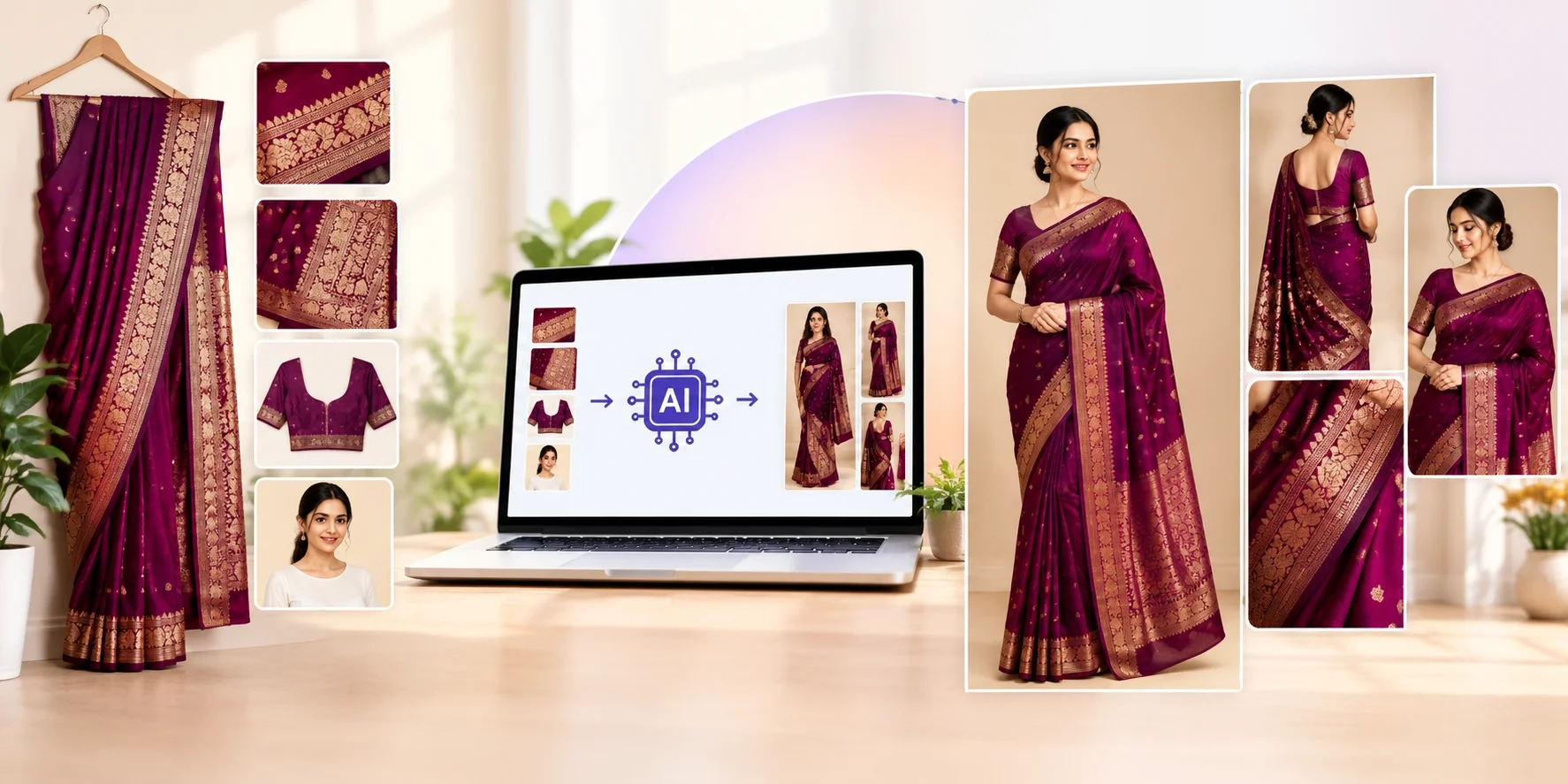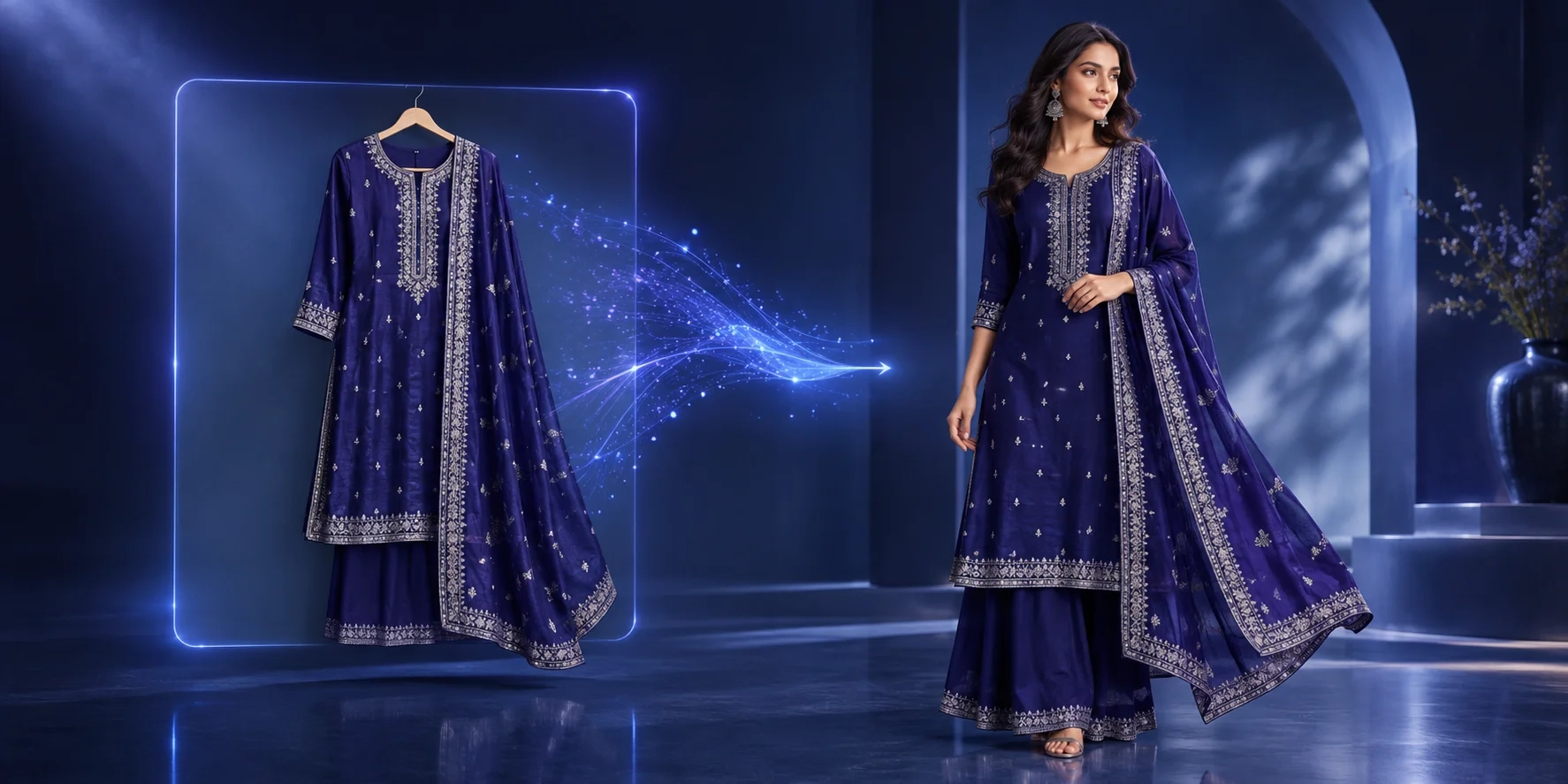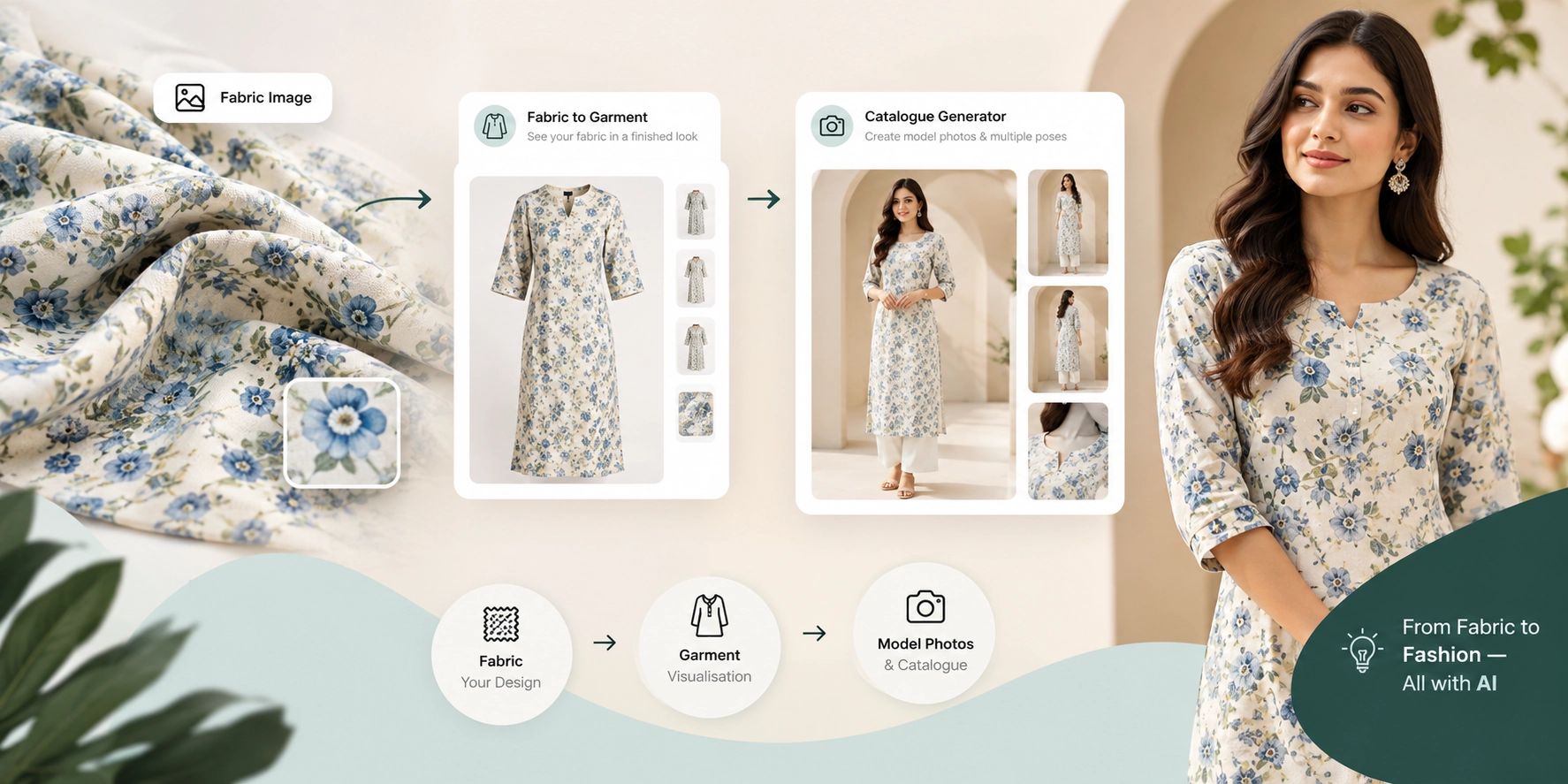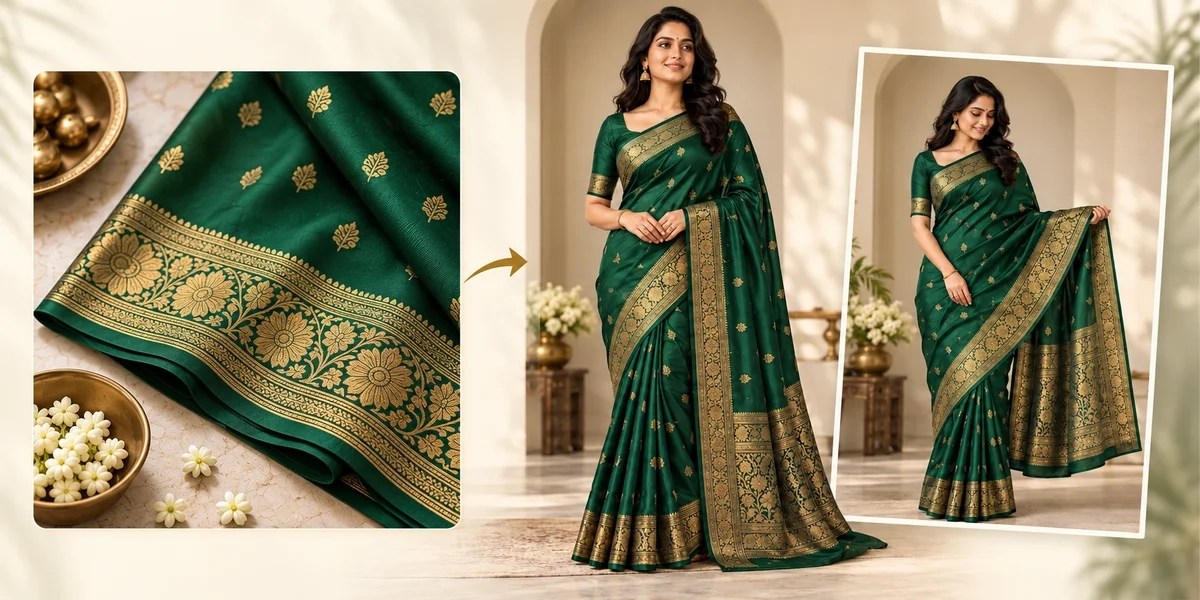
To create saree catalogue images with AI, upload clear saree and model photos, choose your poses and background, generate the pictures, and check the details before downloading. An AI saree catalogue generator helps you show a saree on a model without planning a new shoot for every product.
If you sell sarees, you know that a folded cloth photo cannot show everything. Buyers also want to see the full look, the pallu, and the border.
This guide shows you how to make useful catalogue pictures with Textile Magic AI, using simple steps.
What Is an AI Saree Catalogue Generator?
An AI saree catalogue generator is a tool that creates model pictures using your product photos as a guide.
You give it a saree photo and a model reference. It makes a new image showing how the saree could look when worn.
A catalogue is simply a set of product pictures. It helps buyers explore your collection.
Think of AI images as a way to show the full outfit. Keep real fabric photos too, so buyers can see the actual cloth and small details.
Why Use AI for Saree Catalogue Images?
A new shoot can involve a model, a photographer, lights, and a place to work. That can mean extra planning whenever you add new sarees.
AI gives you another way to build your product gallery.
For a small boutique, it can help you try a clean model look. For a wholesaler, it can help you give many designs a similar style.
The aim is clear: show each product well and make your collection easy for online buyers to browse. Beautiful pictures should also help buyers understand what they will receive.
What Do You Need Before You Start?
Keep these items ready:
-
A clear photo of the saree.
-
A full body model photo you have permission to use.
-
Close photos of important blouse and border details.
-
A background photo, if you want a certain setting.
-
The product name or code.
The AI Saree Model Photo Studio requires saree and model photos. Blouse, border, and background photos are optional.
Save each saree's references together. This helps prevent mixing a blouse or border from one product with another.
How to Create Saree Catalogue Images with AI
Step 1: Take a Clear Saree Photo
Spread the saree where the colour and design are easy to see. Take the photo in soft daylight or even indoor light.
Avoid filters that change the colour. Keep your phone steady and check that the image is sharp.
Show the pallu, which is the loose end of the saree, and the border. If these parts are hidden, take extra photos before you begin.
Step 2: Open the Saree Studio
Open Textile Magic AI's saree studio and sign in to generate images.
Start with one saree while you learn the process. This makes it easier to check the result and decide what to change.
Give the test product a simple code, such as SAREE001. Use that same code for its source photos and finished pictures.
Step 3: Upload Your Reference Photos
Add your saree photo and model photo. Include blouse front, blouse back, or border references when those details matter.
Choose a model picture where the body and face are easy to see. Avoid a photo where a bag or another person covers the outfit.
Before moving on, check the uploads. A clear picture of the wrong saree will still lead to the wrong product image.
Step 4: Pick a Simple Background
Upload a background if you want a specific setting. Without one, the studio selects a contrasting studio background.
For your first test, choose a calm look.
A cream wall may suit a dark saree. A soft grey background may help a pale saree stand out.
Avoid too many flowers, chairs, or decorations. The buyer should notice the saree first.
Step 5: Choose Your Model Poses
The tool offers one to six images, with pose options such as front standing, holding the pallu, side, walking, close-up, and back view.
Choose views that answer different buyer questions.
A front view shows the full outfit. A pallu view helps show its design. A side view shows another angle.
Begin with a small set. You can build a larger gallery after you approve the first results.
Step 6: Select the Image Shape
The studio offers 4:5 and 9:16 image shapes.
A 4:5 picture can suit a tall product card. A 9:16 picture gives you a taller frame for vertical content.
Check your own store layout before choosing. Leave space around the model so the head, pallu, and bottom border remain visible.
Use the same shape across a collection when it suits your page design.
Step 7: Generate and Check the Picture
Start the generation, then compare the result with your real saree.
Check these points:
-
Does the colour look right?
-
Is the border the correct width and design?
-
Does the pallu match?
-
Are the prints in the right places?
-
Do the hands, face, and folds look natural?
An attractive image is not enough if it shows a different product. If needed, add a better reference and try again.
Step 8: Download and Organise Your Images
Download the pictures you have approved.
Use clear names such as blue-cotton-saree-front.jpg and blue-cotton-saree-pallu.jpg.
Keep the finished pictures beside the real product photos. Store each saree in its own folder.
Before uploading, open every image once more. Remove duplicate views and choose the clearest front picture as your main product image.
Simple Prompt for an AI Saree Image Generator
Use the custom instructions box to explain the look you want in plain words.
For example:
“Show the uploaded blue saree on the model in a front standing pose. Use a plain cream background and soft light. Keep the blue colour, white border, and pallu design from the reference. Show the full saree.”
Change the colour and border details to match your own product.
A prompt gives the tool direction. It does not prove the result is accurate. Compare the finished image with your references, especially when the saree has tiny prints or detailed work.
What Pictures Should a Saree Catalogue Include?
A useful starting set has four pictures:
-
Full front view: Show the whole saree on the model.
-
Pallu view: Show the loose end and its main design.
-
Side view: Give buyers another look at the drape.
-
Real detail photo: Show the true border, weave, or print.
Add a blouse picture when it helps explain the product. Clearly say whether the order includes a blouse piece, a stitched blouse, or no blouse.
For cotton sarees, show the cloth texture. For silk or wedding sarees, show the border and decorative work clearly.
Each image should add useful information.
Common AI Saree Image Mistakes to Avoid
Changed colour: A bright pink saree should not become red. Compare the generated image with a clear photo of the real item.
New patterns: AI may add flowers, lines, or border details that are not there. Check small designs by zooming in.
Wrong fabric look: Cotton should not look like shiny plastic. Look at the surface and folds.
Hidden product details: Large jewellery or a busy pose can cover the blouse and pallu. Keep styling simple.
Mixed product images: Never place one saree's photo in another product's gallery. Check the product code before publishing.
How to Use Saree Catalogue Images on Your Store
Add your approved model images alongside real product photos. Give buyers a full view first, then show details.
Write a clear product description with the fabric, colour, length, care steps, and what comes in the order.
Shopify sellers can follow the official Shopify product media guide when adding images to product pages.
For image SEO, use short, clear filenames and helpful alt text. Alt text describes a picture for people who cannot see it and helps search engines understand its subject.
For example: “Model wearing a blue cotton saree with a white border.”
Describe what the image shows. Avoid filling the text with repeated keywords. See Google's image SEO guide for more advice.
Finally, open the product page on a phone. Make sure the pictures load well and the saree is not cut off.
How Much Does an AI Saree Photoshoot Cost?
Textile Magic AI uses credit packs. Check the current pricing page before you create a large collection.
Your total spend depends on how many images you generate, including any extra attempts.
Start with one product and note how many useful images you get. This gives you a practical way to plan your next batch.
If you also sell other clothes, explore the AI Catalogue Generator.
Frequently Asked Questions
Can I Create Saree Model Photos Without a New Photoshoot?
Yes. An AI saree image generator can create new model pictures from references. You still need clear product photos and, for this studio, a model photo.
Do I Need a Professional Camera?
No. Start with a clear phone photo. Good light, sharp detail, and accurate colour matter more than buying new equipment for your first test.
Will AI Keep Every Saree Detail Exactly the Same?
Not always. AI can change small patterns, colours, or folds. Check the output carefully and use real close-ups to show important fabric details.
Can Small Saree Shops Use This Tool?
Yes. Start with one saree and a few useful views. You can use the same simple process as your collection grows.
Can I Try Textile Magic AI for Free?
Yes. Contact our admin to request free trial credits and a guided demo. Share your saree photo and explain the picture you want.
Create Your First Saree Catalogue Image: Try Free
Your first catalogue can start with one saree and one clear idea.
At Textile Magic AI, our goal is to help you create clean, beautiful product pictures that show your collection well.
Use an AI saree catalogue generator to build your model views, then add real detail photos for a helpful product gallery.
Ready to try it free? Contact our admin for free trial credits and get help with your first image.
Open the AI Saree Model Photo Studio and take the first step today.